28 Aug 2026
Post by Fiona
Introduction
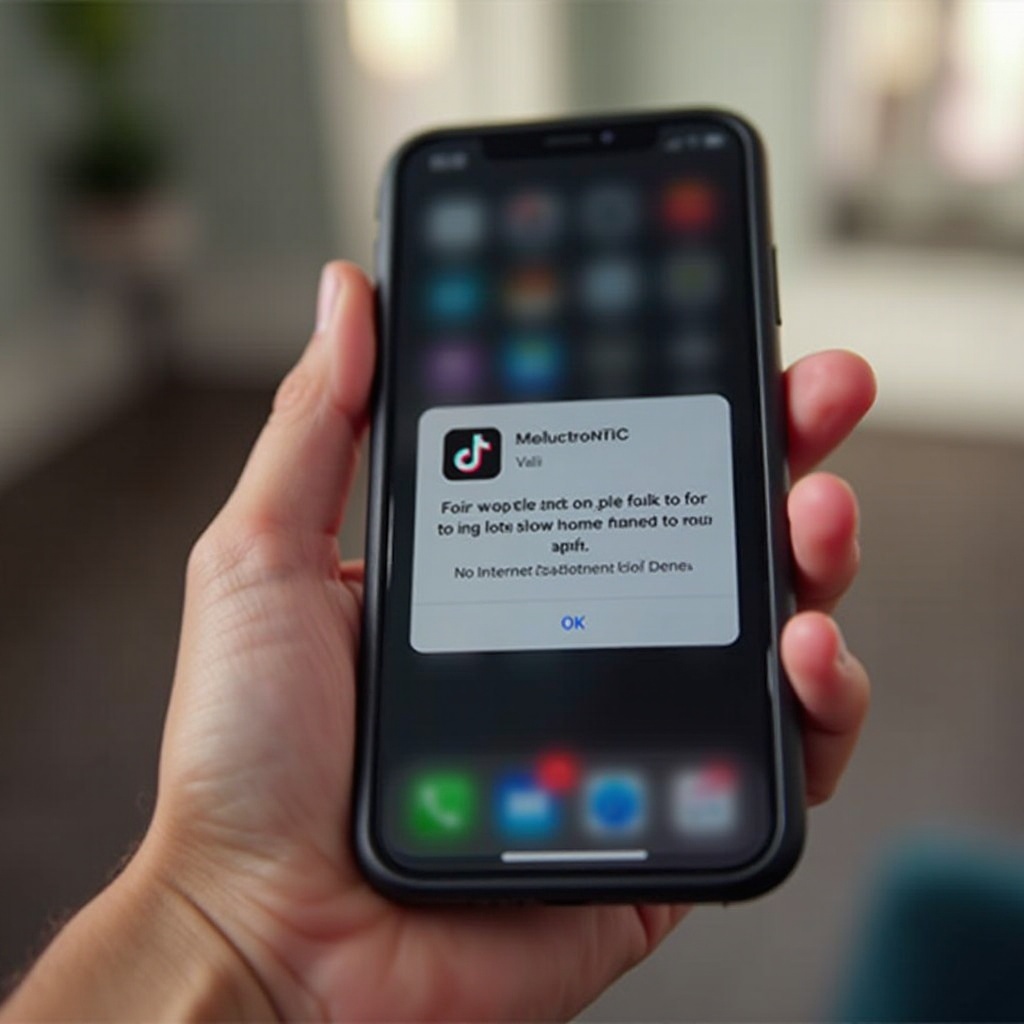
TikTok has quickly become one of the most beloved social media platforms, drawing users with its vibrant and creative content. However, many iPhone users are encountering the frustrating ‘No Internet Connection’ error when trying to access TikTok. This issue disrupts the seamless experience and can cause users to miss out on the latest trends. Fear not, as we’ve compiled a comprehensive guide to walk you through basic and advanced troubleshooting techniques. Whether you’re a casual scroller or a content creator, these steps will help ensure a stable TikTok experience on your iPhone.
Understanding the TikTok Connectivity Issue on iPhone
The sudden appearance of a ‘No Internet Connection’ error on TikTok can send users scrambling for solutions. This problem often arises from various sources such as network settings issues, app glitches, or outdated software. Recognizing these common culprits is crucial for effectively tackling the issue. Sometimes, the problem is as simple as a temporary glitch in your internet connection. Other times, it could be rooted in deeper, more technical issues with your iPhone or the TikTok app itself.
Understanding why TikTok fails to connect is the first step in resolving these frustrating interruptions. By diagnosing the root cause, you can apply the appropriate fixes, ensuring your TikTok feed runs smoothly without unexpected pauses.
Basic Troubleshooting Steps
When TikTok displays the ‘No Internet Connection’ message, starting with the basics is always wise. Basic solutions often resolve these problems quickly.
Checking Network Settings
- Ensure that your iPhone is connected to a stable Wi-Fi network or has a strong cellular data signal.
- Open your iPhone’s settings and navigate to ‘Wi-Fi’ or ‘Cellular’ to confirm connectivity.
- Disable Airplane Mode if it’s turned on. This can be done via the Control Center or in the iPhone’s settings.
Restarting TikTok and iPhone
- Double-tap the Home button or swipe up from the bottom of the screen to access the app switcher.
- Swipe the TikTok app upward to close it.
- Restart your iPhone by holding the power button and following the prompts to power down, then turn it back on.
If these basic steps don’t resolve the issue, delving into more complex solutions is necessary and will address more ingrained issues.
Advanced Solutions for Persistent Issues
If TikTok continues to present connectivity problems even after basic troubleshooting, more advanced measures may be needed. These steps often tackle deeper system issues that might be affecting TikTok’s performance.
Resetting Network Settings
- Go to ‘Settings’ > ‘General’ > ‘Transfer or Reset iPhone’ > ‘Reset.
- Select ‘Reset Network Settings’ and confirm your choice.
- Note that this will erase all network settings, including saved Wi-Fi networks and passwords, requiring entry again.
Resetting your network settings helps clear potential bugs and restore optimal connectivity settings.
Updating TikTok App and iOS
- Open the App Store and search for TikTok to check for updates.
- Tap ‘Update’ if available. An up-to-date version resolves bugs and improves connectivity.
- Ensure your iPhone’s operating system is current by navigating to ‘Settings’ > ‘General’ > ‘Software Update.
Implementing these advanced solutions addresses software compatibility issues and enhances overall function.
Optimizing Your iPhone for Better Connectivity
To maintain optimal connectivity on TikTok, consider making some adjustments to your device for a smoother and uninterrupted experience.
- Regularly update all apps to prevent software conflicts.
- Clear your iPhone’s cache data to free up storage and improve performance. This can be done via ‘Settings’ > ‘Safari’ > ‘Clear History and Website Data’ for Safari users.
- Manage background app activity by navigating to ‘Settings’ > ‘General’ > ‘Background App Refresh,’ ensuring only essential apps operate in the background.
Optimizing these settings not only benefits TikTok but also enhances overall usage efficiency on your iPhone, allowing for a more streamlined performance.
When to Seek Technical Support
If troubleshooting doesn’t remedy the ‘No Internet Connection’ issue, contacting Apple or TikTok support becomes crucial. Persistent issues could indicate hardware problems or complex software errors beyond standard fixes.
Consider seeking help if:
– All outlined solutions fail to resolve the problem.
– Other apps also show connectivity issues, indicating a broader iPhone problem.
– You’re uncomfortable performing advanced troubleshooting or experiencing hardware-related issues.
Professionals offer expertise and diagnostics for resolving perplexing technical difficulties, ensuring your device functions as expected.
Conclusion
Addressing TikTok’s connectivity on iPhone requires both common-sense approaches and more detailed solutions. By following our troubleshooting guide, you’ll minimize disruptions and maximize enjoyment on one of today’s leading social media platforms. Should issues persist, professional assistance remains a reliable option.
Frequently Asked Questions
Why does TikTok say ‘No Internet Connection’ on my iPhone?
This error often results from unstable internet, outdated apps, or incorrect network settings. Ensuring robust connectivity and updating software generally resolve the issue.
How can I ensure my iPhone maintains a stable internet connection for TikTok?
Regularly update software, manage network settings, and clear cache data. These actions often prevent connectivity issues by ensuring optimal device performance.
Is there a way to prevent connectivity issues on TikTok in the future?
Maintaining device health through timely app and iOS updates, and optimizing phone settings significantly reduces instances of connection errors, ensuring smoother operation.