11 Sep 2026
Post by Fiona
Introduction
Monitoring your GPU temperature in Windows 10 is a central facet of ensuring your system’s performance remains uncompromised and long-lasting. For gamers, graphic designers, and tech enthusiasts, keeping an eye on GPU temperatures is vital. Overheating not only impacts productivity by causing frequent crashes but can also lead to irreversible damage to hardware components. This detailed guide examines a variety of approaches for observing GPU temperature, spanning built-in tools and third-party software. By learning and adeptly managing your GPU’s heat metrics, you can maintain a smooth and efficient operating system. Let’s unveil methods to track your GPU temperature effectively and without hassle.
Understanding GPU Temperature Basics
What is GPU Temperature?
The Graphics Processing Unit (GPU) is the core of rendering images, videos, and animations on your computer screen. The term GPU temperature pertains to the active temperature level of this essential component. Maintaining a temperature between 65 and 85 degrees Celsius while under load is considered optimal. Going beyond these limits might suggest insufficient cooling mechanisms or issues stemming from overclocking and could result in hardware malfunctioning.
Why Monitoring GPU Temperature is Important?
Keeping a watch on your GPU temperature helps avert the potential for overheating and resultant damage to the graphic card. Escalated temperatures can diminish performance efficiency, initiating thermal throttling where the GPU cuts back productivity to ward off excessive heat. Consistently high temperatures can truncate the lifespan of your GPU, leading to costly repairs or replacements. Through proactive monitoring of your GPU’s temperature, you can address issues early on, sustaining the optimal functionality and longevity of your hardware.
Built-in Windows 10 Tools
Windows 10 comes equipped with native utilities that enable users to track their GPU temperature effortlessly, eliminating the necessity for additional software. These tools are convenient for executing prompt checks.
Using Task Manager to Monitor GPU Temperature
Within Windows 10, the Task Manager incorporates a Performance tab, showcasing GPU temperature data. To access this feature:
- Press
Ctrl + Shift + Escto open Task Manager. - Click on the ‘Performance’ tab.
- Select ‘GPU’ to view the temperature.
Task Manager provides a rapid, straightforward approach to gauge GPU temperature, albeit offering more rudimentary insights compared to third-party tools.
Advantages and Limitations of Native Tools
While built-in tools are advantageous in terms of accessibility and need no installation, they only deliver basic temperature data directly through your system interface. Despite their simplicity, they lack the intricate functionalities offered by third-party software, which furnish meticulous reporting, alert mechanisms, and GPU usage logs – offering a comprehensive monitoring solution for tech aficionados and specialists.
Recommended Third-Party Software
For those desiring advanced monitoring capabilities, an array of third-party software solutions provide detailed insights into GPU temperatures accompanied by additional functionalities.
MSI Afterburner: Features and Setup Guide
MSI Afterburner stands out as a favored tool for conducting overclocking and monitoring duties concerning your GPU. It extends real-time temperature figures paired with usage statistics and voltage readings.
Setting Up MSI Afterburner:
– Download from the MSI website.
– Complete the installation and grant necessary permissions.
– Open the software to access a dashboard displaying temperatures, fan speeds, and a customizable interface for alerts.
HWMonitor: Monitoring Made Easy
HWMonitor offers a user-friendly interface equipped with in-depth monitoring capability. It reads system sensors, including voltage, temperatures, and fan speeds. Installation is as follows:
1. Navigate to the HWMonitor website and download the installer.
2. Execute the installation and launch the program.
HWMonitor adopts a no-frills methodology to monitoring, ideal for individuals who wish to gather data sans additional configuration.
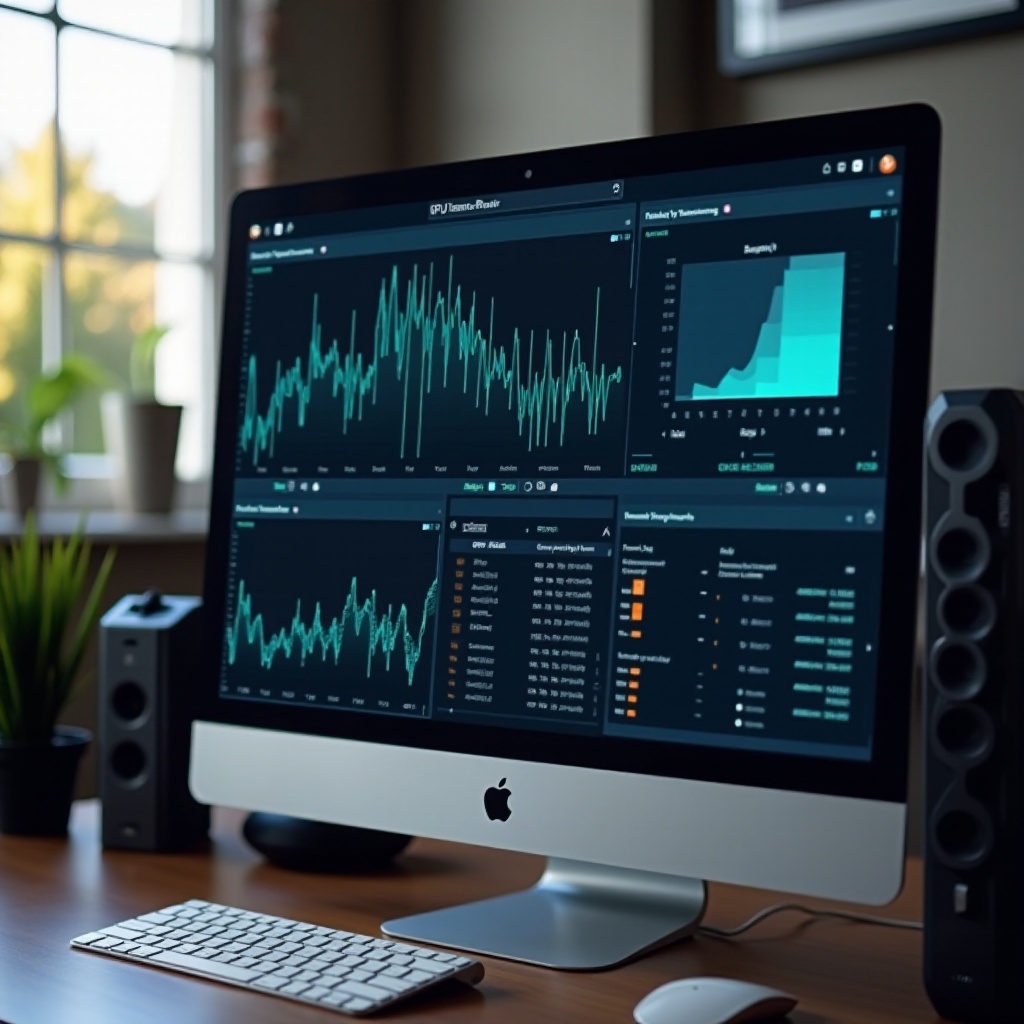
Step-by-Step Guide to Using MSI Afterburner
For gamers and power users alike, MSI Afterburner presents various customizable options for thorough monitoring and finetuning.
Downloading and Installing MSI Afterburner
- Access the MSI website and download Afterburner.
- Proceed with the installer, adhering to setup directions.
- Open the application.
Configuring for Optimal Monitoring
Post installation:
– Navigate to ‘Settings’.
– Tweak the interface to display temperature, usage, and frequency.
– Activate on-screen display during gaming sessions.
Setting Alerts and Notifications
Configure alerts for notifications when GPU temperature surpasses safe thresholds:
– Head to ‘Settings’.
– Click on the ‘Monitoring’ tab.
– Scroll to temperature settings and configure alerts.
These alert features offer visual and auditory notifications, promptly alerting you to potential overheating challenges.
Tips for Maintaining Optimal GPU Temperature
Beyond merely monitoring, maintaining optimal GPU temperature entails proactive strategies in augmenting its cooling efficiency and cleanliness.
Enhancing Cooling Methods
- Maintain adequate ventilation within your PC case.
- Integrate additional case fans if necessary.
- Employ high-grade thermal paste on the GPU.
Regular Maintenance and Cleaning
Dust build-up is a prevalent cause of overheating. Routinely clean your PC’s internal sections with compressed air. Assess fan function and clean or replace if needed. Optimize cable management to better airflow through the case, preventing cooling hindrances.
Conclusion
Monitoring GPU temperature in Windows 10 remains an indispensable activity for individuals engaged in graphic-intensive systems. Native tools render easy access to temperature metrics, while third-party options such as MSI Afterburner and HWMonitor include advanced monitoring features and alert mechanisms to preserve your hardware’s integrity. Ensuring optimal GPU temperature not only enhances performance but also extends the lifespan of your hardware, safeguarding your investments in high-performance computing.
Frequently Asked Questions
What is the ideal GPU temperature for gaming?
For gaming, maintaining GPU temperature between 65-85 degrees Celsius is optimal. Above this range can risk overheating and performance issues.
How often should I check my GPU temperature?
Regularly check your GPU temperature during high-usage sessions or when running graphics-intensive applications. Set up alerts for continuous monitoring if needed.
Can high GPU temperatures damage my computer?
Yes, high temperatures can cause GPU damage over time, leading to failures or reduced lifespan. Monitoring and maintaining optimal temperature levels can prevent these potential issues.