25 Sep 2026
Post by Fiona
Introduction
Accessing past clipboard entries is a common necessity for countless Mac users. Whether you’re involved in tasks that require snippets of text, images, or links, revisiting your clipboard history could save you considerable time and effort. Unfortunately, Apple’s native clipboard functionality limits storage to a single item at a time—an inconvenience when multitasking on more complex projects. However, fret not—there are viable solutions to this constraint. In this guide, we’ll detail how to view clipboard history on your Mac, exploring built-in methods, efficient third-party applications, and sharing pro tips to optimize your clipboard management effectively.
Understanding Clipboard History on Mac
Clipboard functionality is crucial for everyday computer activities, allowing you to copy text, images, files, and more for temporary storage and easy pasting. On a Mac, this clipboard retains only one item at any given time. If you copy something anew, the existing item is overwritten, posing a challenge if you wish to access prior entries.
Fortunately, clipboard history tools can broaden this capacity. Clipboard history empowers you to view and recover previously copied items. By using clipboard managers, Mac users can navigate multiple copied items and organize them efficiently for future use. Understanding this mechanism is foundational to maximizing its potential.
Built-in Methods to Access Clipboard History
Before delving into third-party applications, you might wonder if native solutions exist. Let’s evaluate two methods that offer limited insights into clipboard usage.
Using Terminal
For those comfortable with it, the Terminal app on Mac can assist in retrieving clipboard data:
- Open the Terminal application.
- Type the command
pbpasteand press Enter. - The current clipboard content will be displayed as output.
While Terminal isn’t capable of revealing complete clipboard history, it’s a useful tool for verifying the current clipboard content rapidly.
Utilizing Finder
Finder, the Mac’s file manager, doesn’t provide direct access to clipboard history either. However, certain techniques can be used to streamline access to frequently copied files.
- Copy text or files that you use often.
- Create a folder in Finder named “Clipboard Items.”
- Drag and save these files into this folder for quick later retrieval.
Though neither Terminal nor Finder offers true clipboard history, they can fulfill some elementary requirements.
Best Third-Party Applications for Clipboard Management
To gain fuller access to clipboard history on Mac, third-party applications present excellent options.
App 1: Overview and Features
CopyClip’ is a minimalist yet effective clipboard manager for macOS. Its standout features include:
- A lightweight, unobtrusive menu-bar application.
- Configurable storage for numerous clipboard entries.
- Rapid, direct access to clipboard history.
CopyClip offers a straightforward experience for users desiring simplicity and functionality.
App 2: Overview and Features
Paste’ is another outstanding clipboard manager, offering advanced features:
- A beautifully crafted interface with a timeline view of entries.
- Allows categorization of clipboard items.
- Provides a search function for swift access to specific entries.
Paste’s comprehensive feature set makes it perfect for users requiring detailed organization and management of their clipboard history.
How to Set Up and Use Third-Party Clipboard Managers
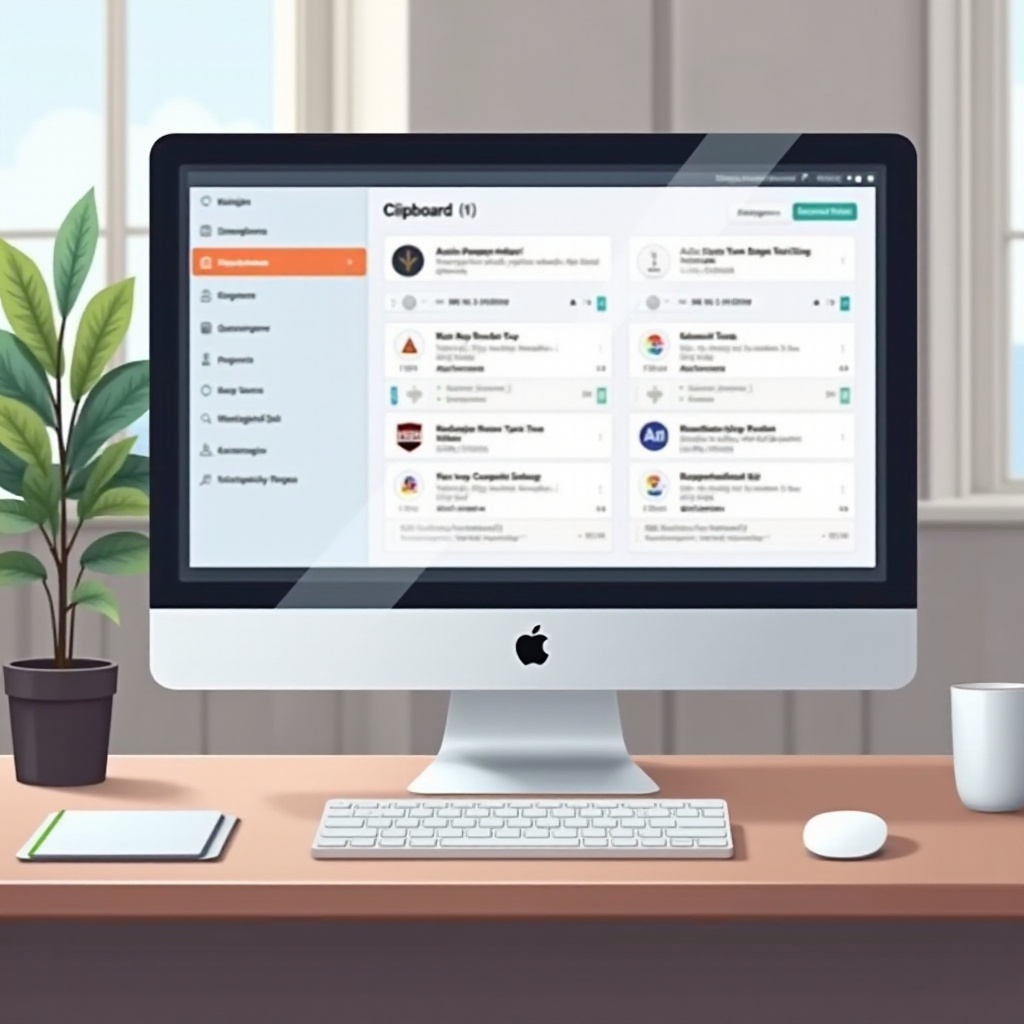
Integrating clipboard managers into your routine can greatly enhance workflow efficiency. Here’s a step-by-step guide to initiate their use:
Installation Process
- Select and download your desired clipboard manager from the Mac App Store or directly from the developer’s website.
- Follow the installation prompts to install the application on your Mac.
- Launch the application.
Configuring Settings for Optimal Use
- Access the application’s preferences or settings menu.
- Determine the number of clipboard entries to keep.
- Assign keyboard shortcuts for quicker access.
- Adjust other settings like notifications to complement your workflow.
By customizing these settings, you ensure you leverage the full potential of these clipboard managers.
Troubleshooting Common Clipboard History Issues
While using clipboard managers, you might face periodic challenges:
- Lag or Performance Drops: Try lessening the number of stored entries.
- Compatibility Issues with macOS Updates: Frequent updates to your clipboard manager can resolve these problems.
- Accidental Data Loss: Make it a habit to periodically back up your clipboard entries if the app allows.
Prompt issue resolution preserves application function and avoids workflow interruptions.
Tips for Effective Clipboard Management and Productivity Enhancement
- Periodically clean unnecessary entries from your clipboard manager to reduce clutter.
- Leverage keyboard shortcuts to expedite your processes.
- Organize clipboard entries into folders or categories using app-specific features.
Implementing these strategies will not only heighten productivity but also refine clipboard management practices.
Conclusion
Efficient clipboard history management on a Mac needn’t be an arduous endeavor. Though Apple’s built-in solutions have limitations, third-party applications such as CopyClip and Paste offer robust methods to store and retrieve multiple clipboard entries with ease. Regardless of whether you’re a professional or a casual user, dedicating the time to setting up these tools can notably improve productivity and streamline your workflow.
Frequently Asked Questions
Can Mac store multiple clipboard entries without third-party apps?
No, Mac’s built-in clipboard only retains a single item. Third-party apps are essential for accessing multiple clipboard entries.
Are third-party clipboard managers safe to use?
Yes, most reputable clipboard managers are safe. Always ensure downloads are from trusted sources and check reviews for security assurance.
How can I protect my clipboard data?
Use clipboard managers with encryption features, keep applications updated, and exercise caution when handling sensitive clipboard data.